
Best Image Upscaler for People
An honest take on the best image upscaler for people: 2x or 4x portraits in your browser, free, no sign-up, and your photo is not uploaded.
or drop / paste an image here · JPG, PNG, WebP up to 20 MB
Runs in your browser. Your image is never uploaded.
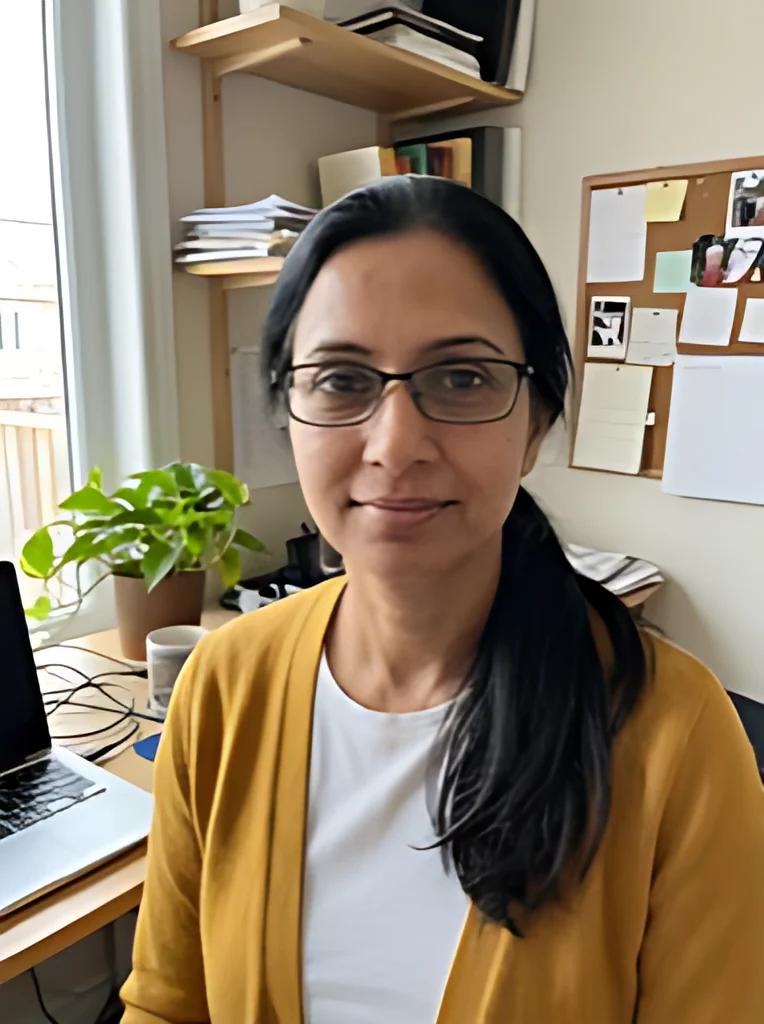 BeforeAfter
Examples
BeforeAfter Before
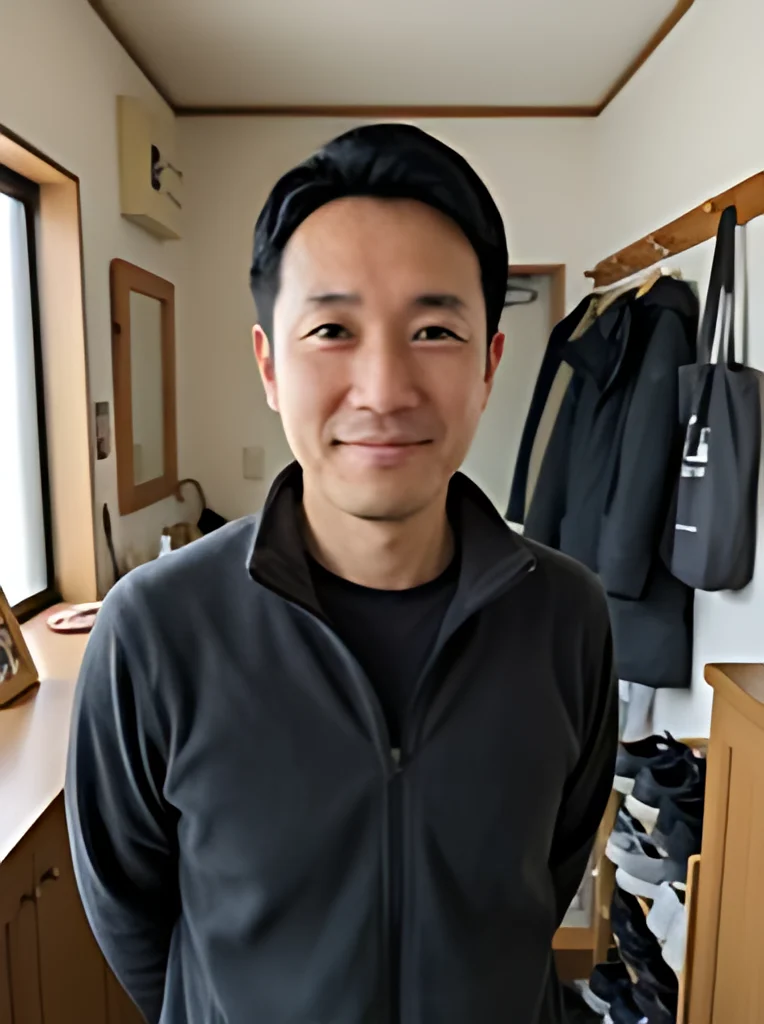 After
What this portrait upscaler does to faces
This tool enlarges a photo of a person two or four times. It uses an open-source AI model trained on real photos that were blurry, noisy or heavily compressed. The model sharpens edges, removes noise and cleans up the blocky marks a JPG picks up. Edges come out crisper than with a plain resize, which only stretches the pixels you already have.
We want to be clear about one thing. It is a general photo model with no special face mode, and it is not a face restoration tool. In our tests edges came out sharper, but skin came out smoother, with less pore and wrinkle texture than a real high-resolution photo. The new detail is the model's guess, not what the camera recorded, so compare every face with the original before you use the result.
For a clear portrait that is simply too small, that trade is usually fine. If you are judging the best image upscaler for people for your own photos, the examples above show what to expect.
Made for
- Professional headshots
- Team and staff photos
- Family and group shots
- Profile pictures
- Event and wedding snaps
- Portraits for small prints
What to check on faces after you upscale a portrait
Drag the before and after slider over each face. These are the spots where an AI upscale of a person goes wrong first.
- Skin: look at the cheeks and forehead on the slider and in the downloaded file; if they look waxy, keep the original.
- Eyes: check that both irises are round, the same color and looking the same way as in the original.
- Teeth and lips: look for teeth that merged into one white shape or a lip line that moved.
- Glasses and jewelry: frames and earrings should stay straight lines and keep their shape.
- Hair edges: look for bright or dark halos where hair meets a light background.
- Small faces in group shots: the fewer pixels a face has, the more the model guesses, so check each person.
- Start from the unfiltered original, because a beauty filter has already smoothed the skin and the model smooths a little more.
- Download the result before you close the tab, since nothing is saved.
Photos of people worth upscaling
Clear photos that are only too small benefit most. Badly blurred faces are a job for a different tool.
Headshots for profiles
A cropped headshot from a group photo or an old work badge is often a few hundred pixels wide. Upscale it 4x so it stays sharp on a profile page or a speaker bio.
Team and staff pages
Mixed photos from different phones rarely match in size. Bring the small ones up to 2x or 4x, then check each face, since different source quality can still give different results.
Family and group shots
Enlarge a reunion or holiday photo before you crop out one person. Check each small face afterwards, because those carry the least real detail.
Profile pictures
A selfie saved from a chat app may be smaller than the original, so use the original when you can. Otherwise a 2x upscale cleans up compression blocks around the face and hair.
Event and wedding snaps
Guest photos shared in group chats arrive small and soft. Upscale the keepers before you put them in an album or slideshow.
Small portrait prints
A 4x result gives a phone portrait more pixels for a small print. Check the skin at full size first, since print shows smoothing clearly.
Portrait upscaler, face restoration tool or a new photo
The best image upscaler for people depends on the photo. Here are three ways to get a sharper one.
| This upscaler | Face restoration tools | A new photo | |
|---|---|---|---|
| What it does to faces | Sharpens the whole photo the same way | Finds faces and rebuilds eyes, skin and hair | Records real detail |
| Risk to likeness | Likeness can change; compare every face | Depends on the tool and settings; compare every face | None |
| Blurry or damaged faces | Not built for them | Built for them | Not possible for old photos |
| Where your photo goes | Stays on your device | Local or cloud, depending on the tool | Your camera |
| Cost | Free, no sign-up | Check the tool's pricing | Your time or a photographer's fee |
| Best for | A clear portrait that is too small | A tiny or blurred face you must rescue | Official photos and large prints |