
Photo Enlarger
A free photo enlarger that makes a picture 2x or 4x bigger on your own device, ready for a frame or a print. No upload, no sign-up, no watermark.
or drop / paste an image here · JPG, PNG, WebP up to 20 MB
Runs in your browser. Your image is never uploaded.

 BeforeAfter
Examples
BeforeAfter Before
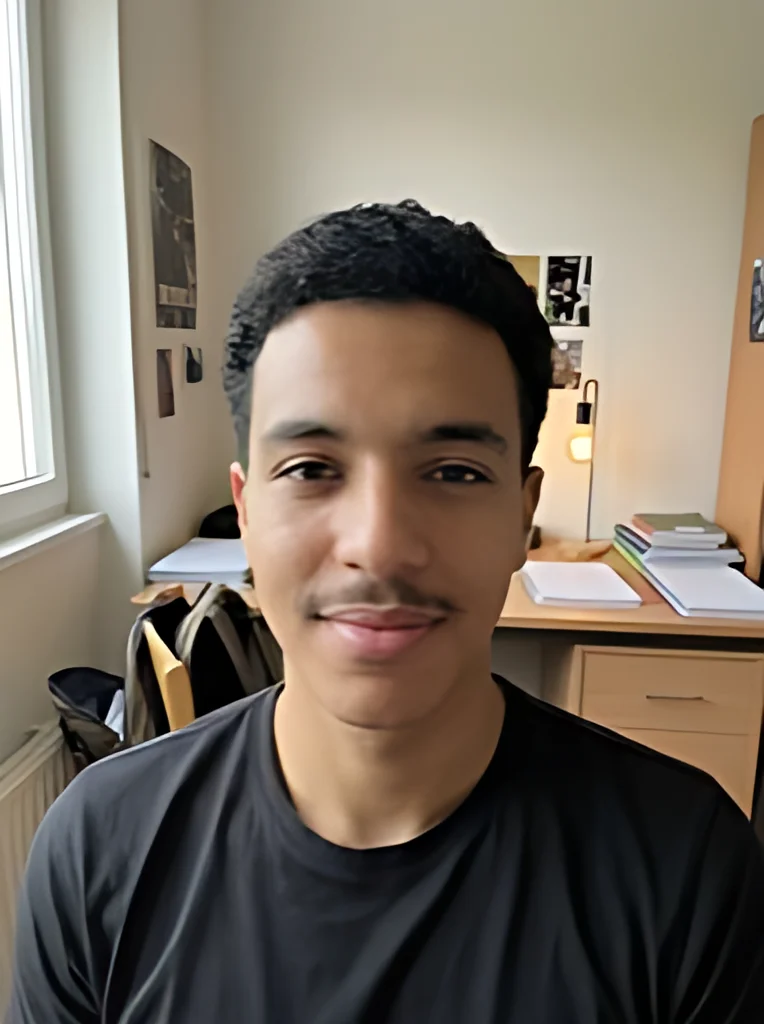 After
AfterHow to enlarge a photo in three steps
The photo enlarger runs in this browser tab, so the steps below happen on your device from start to finish.
- 1
Choose the photo
Pick a JPG, PNG or WebP file up to 20 MB, or drag it onto the box. iPhone HEIC files are not read yet, so export the photo as JPG first.
- 2
Pick 2x or 4x and press Upscale
2x doubles the width and height; 4x makes each side four times longer. On its first run the photo enlarger downloads a 2.4 MB photo model and a runtime of about 28 MB, which your browser then keeps.
- 3
Compare, then download
Drag the before/after slider over faces, hair and any text to check the enlarged photo against the original. Download the result. For a JPG, turn on Save as JPG and press Upscale again.
How big can you print after you enlarge a photo?
Print size at 300 pixels per inch, as an example; use the density your printer asks for.
| Original | After 2x | After 4x | |
|---|---|---|---|
| Face cropped from a group shot, 300 x 400 px | 1 x 1.3 in | 600 x 800 px, 2 x 2.7 in | 1200 x 1600 px, 4 x 5.3 in |
| Small web picture, 600 x 400 px | 2 x 1.3 in | 1200 x 800 px, 4 x 2.7 in | 2400 x 1600 px, 8 x 5.3 in |
| Square social post, 1080 x 1080 px | 3.6 x 3.6 in | 2160 x 2160 px, 7.2 x 7.2 in | 4320 x 4320 px, 14.4 x 14.4 in (on a computer) |
| Older phone photo, 1200 x 800 px | 4 x 2.7 in | 2400 x 1600 px, 8 x 5.3 in | 4800 x 3200 px, 16 x 10.7 in |
| Scanned print, 1500 x 1000 px | 5 x 3.3 in | 3000 x 2000 px, 10 x 6.7 in | 6000 x 4000 px, 20 x 13.3 in (on a computer) |
Before you enlarge a picture for a frame
A few minutes of checking before you order saves a reprint.
- Start from the largest copy you have: the original file, not a screenshot or a version sent through a chat app, which is often shrunk.
- Work out the pixels your print needs by multiplying each side in inches by the density your printer asks for: at 300, an 8 x 12 in print needs 2400 x 3600 px and an 11 x 14 in print needs 3300 x 4200 px.
- Choose the smaller of 2x or 4x that reaches that size, then check what the photo enlarger made against the original.
- If the photo only exists on paper, scan it flat rather than photographing it at an angle, then enlarge the scan.
- If you know the frame shape, crop in an editor before you enlarge, so the new pixels go to the part you keep; the photo enlarger has no crop control and never adds borders.
- Compare faces and small lettering on the slider, and open the downloaded file at full size before you order: the model tends to smooth skin and can reshape tiny text.
- On an iPhone or iPad, results above about 16.7 megapixels stop with a too-large message, so run 4x on bigger photos from a computer.
What to know before you enlarge a photo here
The facts that matter when the result is going into a frame or onto a wall.
Your photo stays on your device
Your image is upscaled on your own device and is never uploaded to our servers. The enlarging runs in this browser tab, so a family photo never passes through our server or an outside AI service.
Free with no sign-up or watermark
There is no account, no credit card and no daily cap. The downloaded file carries no logo or mark.
Open-source software
Photos are enlarged with an open-source AI model, and the software that runs it in your browser is open source too.
A guess, not a recovery
The model adds plausible edges and texture; it cannot bring back detail the camera never recorded. Check what the photo enlarger made on the slider before you pay for a print.