
Picture Upscaler
A free picture upscaler for everyday pics. 2x or 4x with AI, a before/after slider, no sign-up, and your picture is not uploaded.
or drop / paste an image here · JPG, PNG, WebP up to 20 MB
Runs in your browser. Your image is never uploaded.

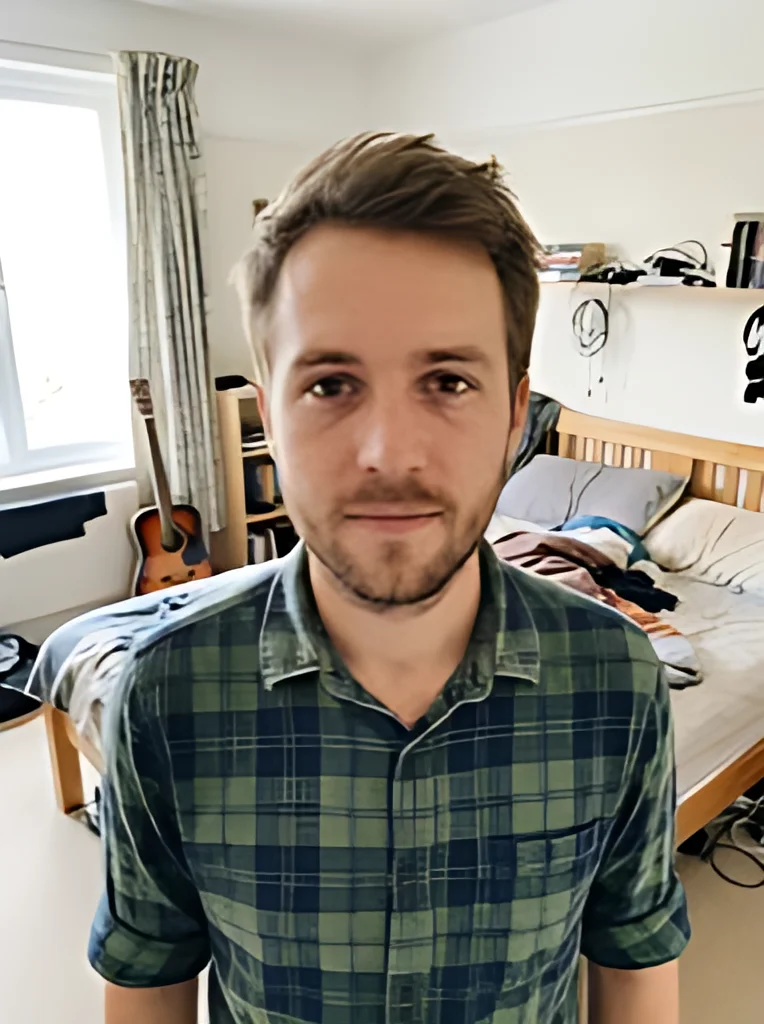 BeforeAfter
Examples
BeforeAfter Before
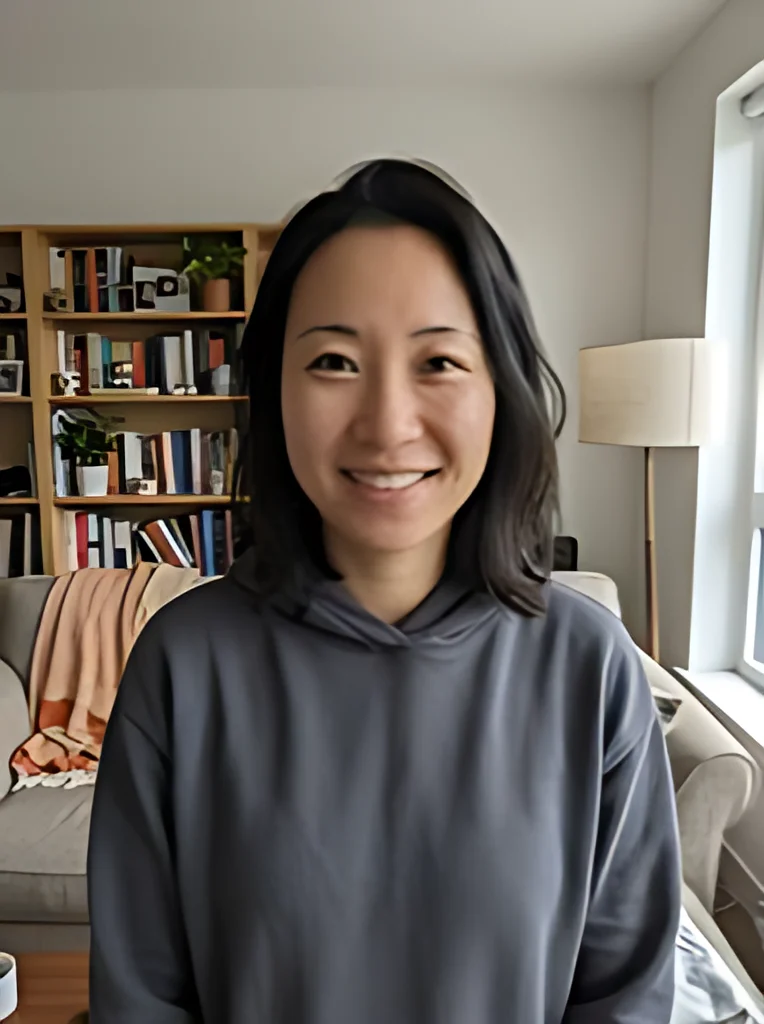 After
AfterUpscale pictures you already have, on your own device
Phone snaps, screenshots, pics from a group chat: small files that look soft once you need them bigger.
This picture upscaler makes one picture 2x or 4x larger in each direction. A 4x result has 16 times the pixels. It uses an AI upscaling model trained on real photos with blur, noise and compression blocks, so it draws cleaner edges and texture instead of just stretching pixels.
The whole job runs in your browser. Your picture is not sent to our server or to any AI service, and there is no queue, no daily cap, no account and no watermark. When it finishes you see the size and file size of the result, a Download button, and a slider you drag across to compare the original with the upscaled version.
The model fills in detail it predicts. It does not recover what the camera never captured, so check faces and small text on the slider before you use the result.
Made for
- Phone photos
- Screenshots
- Pics saved from chats
- Profile pictures
- Product snaps
- Slides and documents
Which picture upscaler output fits your picture
Pick by the pixel size you need. Example sources and the exact result of each button.
| 2x result | 4x result | Pick when | |
|---|---|---|---|
| Screenshot crop of a photo, 540 x 720 | 1080 x 1440 | 2160 x 2880 | 2x fills a 1080 px wide phone screen |
| Profile picture saved from a site, 200 x 200 | 400 x 400 | 800 x 800 | 4x when the slot is 800 px |
| Picture from a group chat, 960 x 1280 | 1920 x 2560 | 3840 x 5120 (computer only) | 2x already passes 1920 px |
| Product snap, 500 x 500 | 1000 x 1000 | 2000 x 2000 | 4x when a listing asks for 2000 px |
| Meme or sticker, 320 x 320 | 640 x 640 | 1280 x 1280 | 2x for chat, 4x for a slide |
How to upscale a picture and get a cleaner result
The source sets the ceiling. These steps give the picture upscaler the most detail to start from.
- Start from the original file, not a screenshot of it or a copy sent through a chat app that shrank it again.
- Use JPG, PNG or WebP up to 20 MB; export iPhone HEIC photos as JPG first, because HEIC is not supported.
- Crop to the part you need before you upscale, so the pixel budget goes to the subject.
- Choose the smallest output that meets the pixel size you need, and compare the generated detail with the original.
- Keep the default PNG output for logos or graphics with a transparent background; tick Save as JPG for a much smaller file.
- Drag the slider over faces, hair and any text and compare them with the original before you download.
- Download right away: results are not saved, and closing the page clears them.