
Increase Photo Resolution
Increase photo resolution on your own device: pick 2x, 4x, HD or 4K and compare before and after. Free, no sign-up, no watermark, no upload.
or drop / paste an image here · JPG, PNG, WebP up to 20 MB
Runs in your browser. Your image is never uploaded.

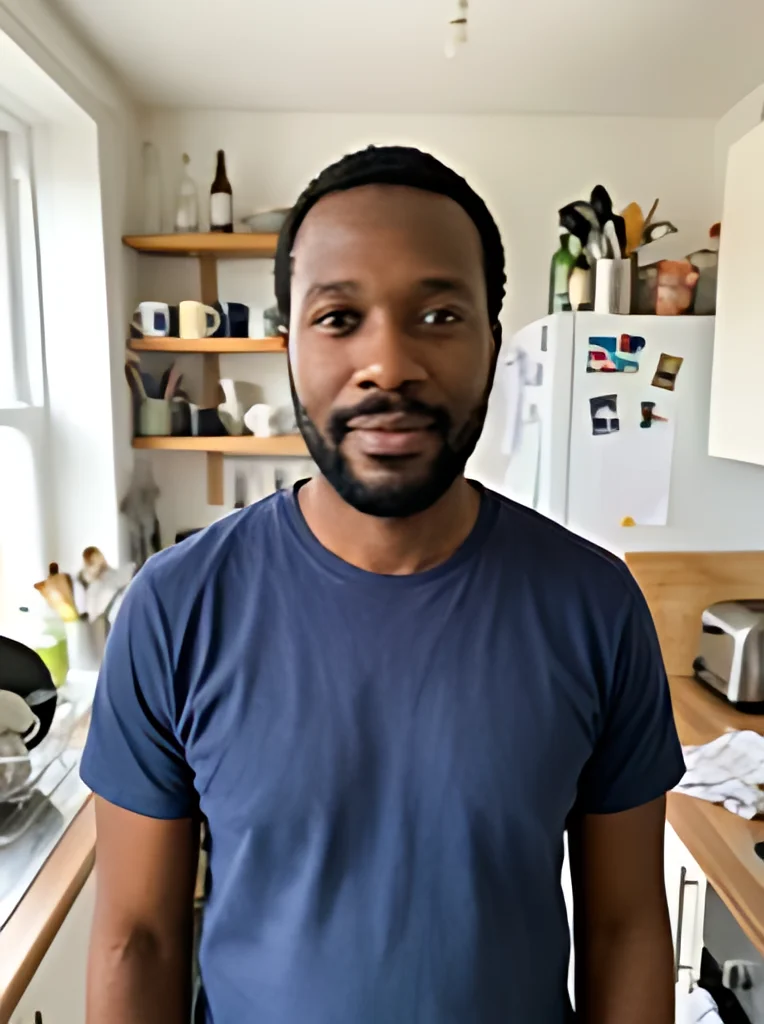 BeforeAfter
Examples
BeforeAfter Before
 After
AfterHow to increase the resolution of an image
Four steps to increase photo resolution, and the photo never leaves your browser.
- 1
Choose the photo
Pick a JPG, PNG or WebP file up to 20 MB, ideally the original rather than a copy saved from a chat app. HEIC photos from an iPhone need to be exported as JPG first.
- 2
Pick how much bigger
2x and 4x multiply the width and height. HD makes the long edge 1920 px and 4K makes it 3840 px, keeping the aspect ratio with no crop and no padding.
- 3
Click Upscale and wait a few seconds
The first time, your browser downloads a 2.4 MB model and a runtime of about 28 MB, which it then caches. On our test Mac in Chrome a 382 x 512 photo took about 6 seconds at 4x and about 8 seconds to 4K, counting the model start.
- 4
Compare, then download
Drag the before/after slider to check faces, edges and any text against the original. Download the result. For a JPG, turn on Save as JPG and press Upscale again. Nothing is saved for you, so download before you close the page.
What changes when you increase photo resolution
Resolution is a pixel count, but people often mean sharpness or file size too. Here is what this tool changes and how to check it.
| What this tool does | How to check it | |
|---|---|---|
| Pixel width and height | Goes up 2x or 4x, or to a 1920 or 3840 px long edge | The size shown under the result |
| Edges and outlines | Redrawn sharper by the AI model | Drag the slider across edges |
| Noise and JPEG blocks | Mostly cleaned up as it enlarges | Look at flat areas such as sky or walls |
| Detail the camera never caught | Predicted, not recovered | Compare faces and small text with the original |
| Shape of the photo | Kept, with no crop and no borders | Width and height keep the original ratio |
| File size | Usually larger; depends on the picture and PNG or JPG | The file size shown before you download |
Before you improve photo resolution
Prep before you increase photo resolution decides more of the result than the button does.
- Start from the largest copy you have: a photo forwarded through a messenger or saved from social media is usually smaller and more compressed than the original.
- Crop first, so the model works on the part you will actually keep and the result stays within the size limit.
- Export iPhone HEIC photos as JPG before you start, since only JPG, PNG and WebP files are accepted.
- Pick the target from where the photo is going: HD for slides and full-screen viewing on a 1080p display, 4K for large screens and big prints.
- If the photo is already larger than the size you picked, the tool tells you instead of shrinking it, so choose 2x or 4x.
- Keep the PNG download when the image has a transparent background; JPG turns transparent areas white.
- After upscaling, compare faces and small text with the slider, then open the downloaded file to see them at full size: skin can come out smoother and tiny blurry letters can change shape.