
DPI Converter
A DPI converter that also adds pixels: set 300 DPI, upscale 2x or 4x with AI and see the print size in inches. Free, on your device.
or drop / paste an image here · JPG, PNG, WebP up to 20 MB
Runs in your browser. Your image is never uploaded.
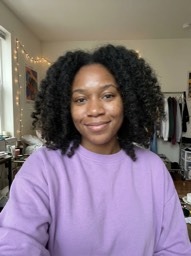
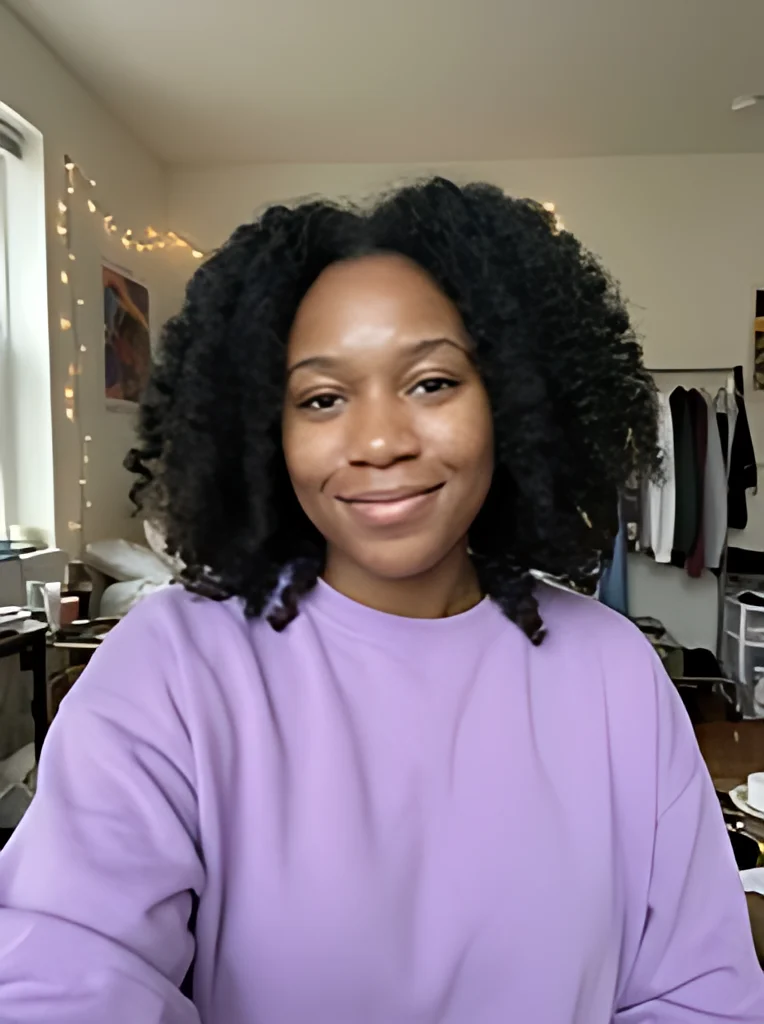 BeforeAfter
Examples
BeforeAfter Before
 After
AfterHow to change the DPI of an image to 300
Four choices on one screen, and the print size updates before you press the button.
- 1
Select your image
Pick, drop or paste a JPG, PNG or WebP up to 20 MB. HEIC photos from an iPhone need to be exported as JPG first.
- 2
Choose 2x or 4x
2x doubles the width and height, 4x quadruples them. The line under the buttons shows the output size in pixels.
- 3
Pick the DPI
Tap 72, 150, 300 or 600; 300 is selected by default. The DPI converter shows how many inches the result prints at with that DPI, so you can switch to 4x if it is too small.
- 4
Upscale and download
Press Upscale, drag the before/after slider to check the result, then download it. The DPI you picked is written into the PNG or JPG file; for another DPI, change it and press Upscale again.
Changing DPI vs increasing the pixels
Three ways to get a file that says 300 DPI, and what each does to your print.
| Metadata-only DPI converter | Resample in an image editor | This DPI converter | |
|---|---|---|---|
| DPI number in the file | Changed | Changed | Changed (72, 150, 300 or 600) |
| Pixel count | Same as before | Grows to the size you type | 2x or 4x the width and height |
| Print size at 300 DPI | Existing pixels divided by 300 | As large as you set it | 2x or 4x the original's print dimensions at 300 DPI |
| How new pixels are made | No new pixels | Blended from neighbors, often soft | AI sharpens edges and removes noise |
| Print size shown before saving | Varies by tool | Yes, in the size dialog | Yes, in inches under the DPI buttons |
| Best when | The file already has enough pixels | You own editing software | The image is too small for the print |
What DPI means and why the number alone isn't enough
DPI (dots per inch) is a number stored in the image file that tells a printer how many pixels to place in each inch of paper. Screens ignore it: a photo looks the same on a website at 72 or 300 DPI.
Print size is simple division. Width in pixels divided by DPI gives width in inches. Our sample portrait is 191 x 256 pixels, so at 300 DPI it prints at about 0.6 x 0.9 inches, the size of a postage stamp. Typing 300 into a plain DPI converter doesn't change that; it only relabels the same pixels.
After a 4x upscale the same portrait is 764 x 1024 pixels and prints at 2.5 x 3.4 inches at 300 DPI. That is what this DPI converter adds: more pixels for the printer to work with, not just a new label.
How many pixels you need to increase DPI for print
At 300 DPI a 4 x 6 inch photo needs 1200 x 1800 pixels, a 5 x 7 needs 1500 x 2100 and an 8 x 10 needs 2400 x 3000. At 150 DPI, a level some guides call fine for posters seen from a few feet away, you need half as many on each side.
Work back from your image. A 1000 x 1250 photo prints at 3.3 x 4.2 inches at 300 DPI. With 2x it becomes 2000 x 2500 and prints at 6.7 x 8.3 inches; with 4x it becomes 4000 x 5000 and prints at 13.3 x 16.7 inches.
There is a ceiling. On a computer the result can be up to about 50 million pixels; on an iPhone or iPad the limit is about 16.7 million, so that 4x example would need a computer.
What this DPI converter does with your file
Your image stays on your device
Your image is upscaled on your own device and is never uploaded to our servers. The AI model runs in your browser tab.
Free, with no account or watermark
Using the DPI converter costs nothing. There is no sign-up, no daily limit and no watermark. The first run downloads the model and its processing software, which your browser then keeps.
Open-source parts
The upscaling model and the software that runs it in your browser are open source. The DPI you choose is written into the downloaded PNG or JPG file.
AI output to check before you print
The model fills in plausible detail; it can't bring back what the camera never captured. Skin can look smoother and very small text can change shape, so compare with the slider first.