
Make Image Bigger
Make image bigger 2x, 4x or up to 4K right on your own device. Free, no sign-up, no watermark, nothing uploaded.
or drop / paste an image here · JPG, PNG, WebP up to 20 MB
Runs in your browser. Your image is never uploaded.

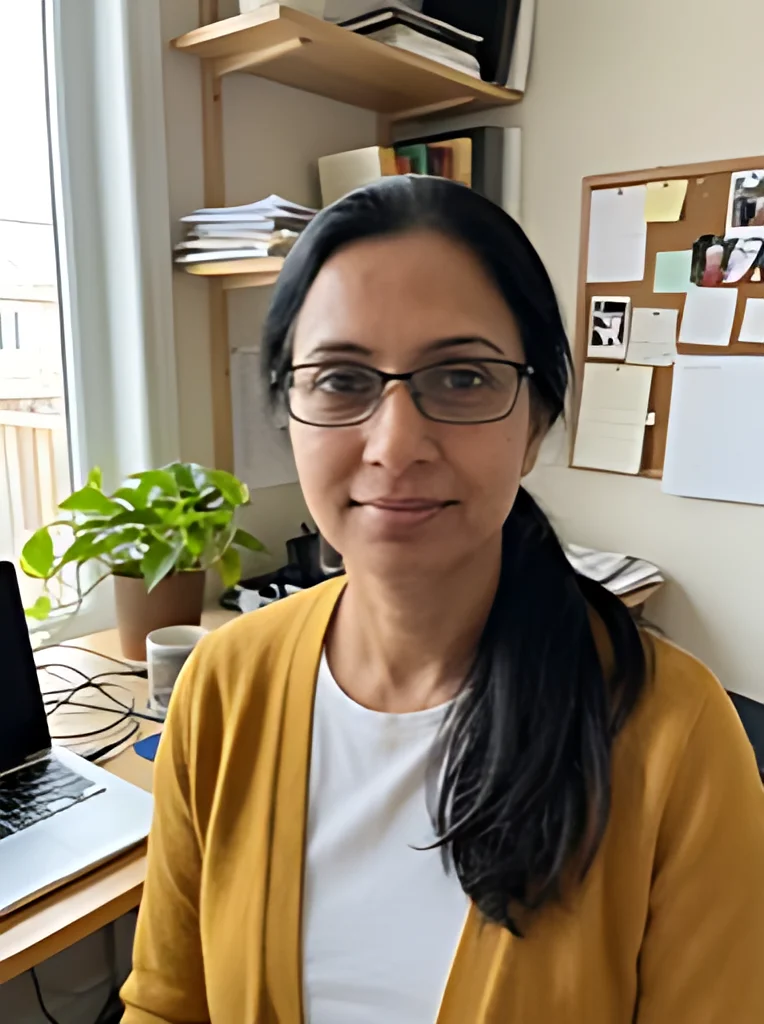 BeforeAfter
Examples
BeforeAfter Before
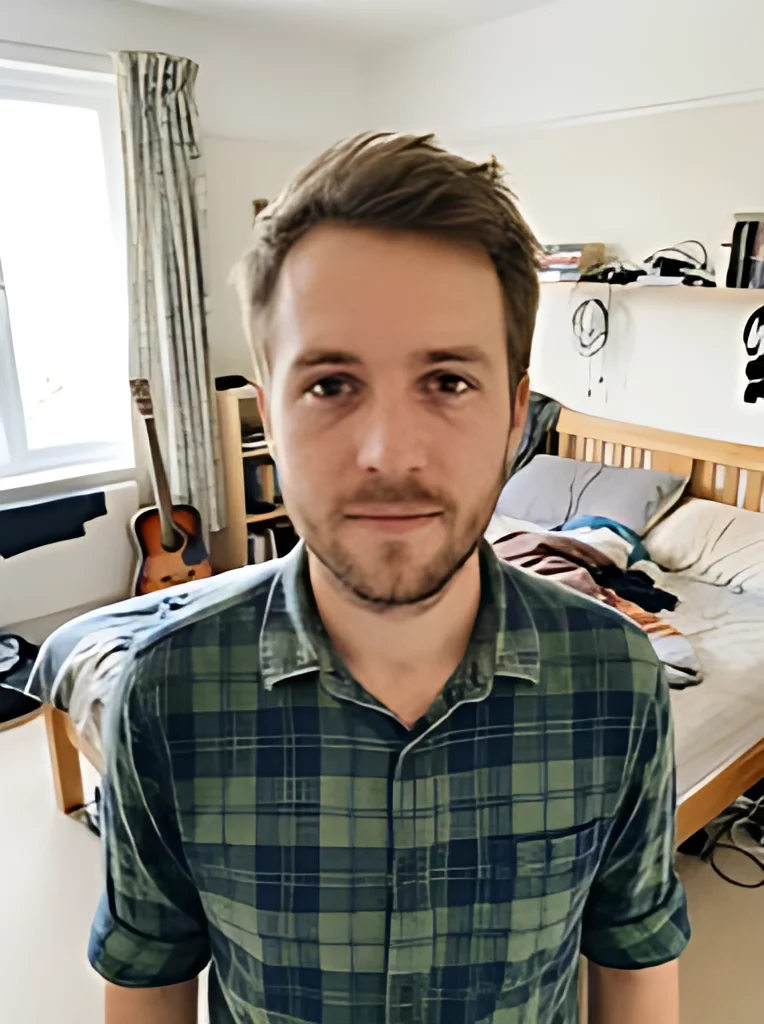 After
AfterMake image bigger in three steps
Stretching an image in an editor spreads the same pixels thinner. Here an AI model fills in the new pixels instead.
- 1
Choose one image
Pick a JPG, PNG or WebP file up to 20 MB. HEIC photos from an iPhone need to be saved as JPG first, and the tool takes one image at a time.
- 2
Pick 2x, 4x or 4K and click Upscale
2x doubles the width and height, 4x makes them four times larger, and 4K sets the long edge to 3840 pixels. The AI then enlarges your photo right in your browser.
- 3
Compare, then download
Drag the before and after slider to check edges, faces and text against the original. Download the result. For a JPG, turn on Save as JPG and press Upscale again.
How big your image gets with each button
Width and height in pixels. The shape of the picture stays the same: nothing is cropped and no borders are added.
| Your image | 2x | 4x | 4K |
|---|---|---|---|
| 382 x 512 (small portrait) | 764 x 1024 | 1528 x 2048 | 2865 x 3840 |
| 640 x 480 (old camera or thumbnail) | 1280 x 960 | 2560 x 1920 | 3840 x 2880 |
| 800 x 600 (web image) | 1600 x 1200 | 3200 x 2400 | 3840 x 2880 |
| 1080 x 1080 (square post) | 2160 x 2160 | 4320 x 4320 (too big for iPhone or iPad) | 3840 x 3840 |
| 1280 x 720 (video frame) | 2560 x 1440 | 5120 x 2880 | 3840 x 2160 |
The tool uses a 4x model and resizes as needed to the exact size. A large image may be shrunk before the model runs, and when 4K needs more than 4x, as with a 640 x 480 picture, the model runs twice. Results over about 50 million pixels on a computer, or about 16.7 million on iPhone and iPad, are refused. If your image is already larger than the 4K target, the tool tells you and does not shrink it.
Why make image larger: where it helps
Most people come here because a file is too small for the place it has to go.
Make image bigger for a website or blog
A hero banner or full-width post image looks soft when the file is narrower than the layout. Enlarge it 2x or 4x so it fills the space, then save as JPG to keep the page light.
Slides and documents
A logo or chart copied from a web page often blurs once it fills a slide. A 4x version holds up better on a projector, but check any small lettering against the original.
Make image bigger for photo prints
Print size is pixels divided by the pixels per inch your printer uses. A 6 x 4 inch print at 300 needs 1800 x 1200 pixels, so an 800 x 600 photo needs about 2.25x; the 4x button gets you there with room to spare.
Product listings
Shop and marketplace pages often ask for larger images than a supplier sends. Enlarge the photo, keep it as PNG if the background is transparent, and the cutout survives.
Wallpapers and screens
The 4K button sets the long edge to 3840 pixels, the width of a 4K monitor or TV. A small photo blown up this far gains clean edges, but fine texture is the model's guess.
Before you make image bigger: tips for a sharper result
The output can only be as good as what you give the model.
- Start from the largest copy you have: the original file, not a screenshot or a copy saved from a chat app.
- Crop away what you don't need first, so the size limits go to the part of the picture that matters.
- Save iPhone HEIC photos as JPG before you choose them; HEIC isn't supported yet.
- Pick the smallest output that does the job: 2x for most web uses, 4x or 4K for print and big screens.
- On an iPhone or iPad stay at about 16.7 million pixels or less; 4K works, but 4x of a large photo may be too big.
- Drag the slider over faces and small text before you download; skin can come out smoother and tiny letters can change shape.
- Download before you close the tab: results are not saved anywhere.
- Some guides suggest a light sharpening pass after enlarging; this tool has no sharpening control, so look at the AI result first.